Free printable seating chart templates
Four free templates for planning seats on paper: a seating chart worksheet, escort cards, folded place cards and a guest list spreadsheet. The PDFs print on US Letter at 100% scale on a home printer. There is no sign-up and no watermark beyond a small line at the foot of each page.
The downloads
| Template | What you get | File |
|---|---|---|
| Seating chart worksheet | Eight table boxes on a landscape page, each with a table name line and ten numbered seats | seating-chart-template.pdf |
| Escort cards | Ten flat 3.5 × 2 in cards per page with cut lines, a name line and "Table ___" | escort-cards-template.pdf |
| Place cards | Four folded cards per page, 3.5 × 2 in once folded, with a fold line and a name line on each half | place-cards-template.pdf |
| Guest list | A spreadsheet with First name, Last name, Party, RSVP, Tags, Dietary, Phone and Notes, plus four example rows | guest-list-template.csv |
Print the worksheet once per eight tables. For 100 guests at tables of 8 that is 13 tables, so two sheets; the table calculator works out the count for your own numbers.
How to use them
- Fill in the guest list first. Open the CSV in Google Sheets or Excel and keep one guest per row. Put people who must sit together under the same Party, such as "Garcia family".
- Count tables and write their names or numbers on the worksheet, one box per table. Seat each party in one box before you place the people who came alone.
- Write the escort cards last, from the finished worksheet, so every card matches the plan. Escort cards lie flat at the entrance and tell guests their table. Place cards stand at each plate. The difference is explained in escort cards vs place cards.
For heavier card stock and printer settings, see how to print place cards at home.
When paper stops working
A paper chart is fine for a few tables. It gets hard when an answer changes a week before the event: one late "no" means crossing out a name, moving a family and rewriting their cards.
The guest list template uses headers that SeatSpot's spreadsheet import recognizes, so you can move to the app at any point. In SeatSpot, tap Import guests on the Guests tab, select the rows in Google Sheets or Excel, copy them and paste. The app matches the columns, shows a preview and flags problem rows before anything is added. Table and seat columns are deliberately not imported: seating is done on the floor plan, where the app can see free seats and conflicts.
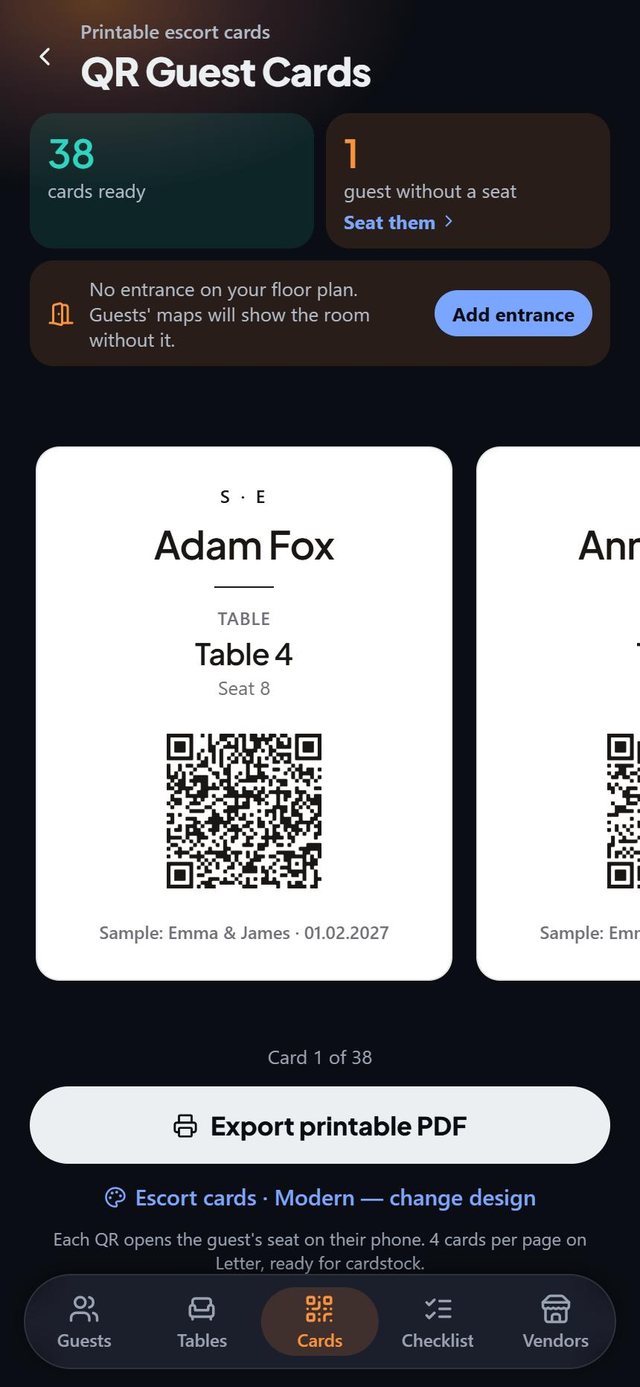
From there the app prints the same three things from one plan: Escort cards four to a Letter page with an optional QR code, Place cards six to a page with the name on both halves, and a Welcome board for the entrance. Move a guest and every printout follows.
Questions people ask
Are these templates really free?
Yes. The PDFs and the CSV are free to download, print and share, with no account and no email address.
What paper should I print the cards on?
Plain paper works for a test run. For cards that stand up, use 65 lb or 110 lb cover stock that your printer can feed; check its manual for the heaviest stock it takes.
Can I import the guest list into SeatSpot?
Yes. The column names match the app's spreadsheet import, which reads pasted rows from Google Sheets or Excel. Names, party, RSVP, tags, dietary needs, phone and notes come across; table and seat do not.
Does SeatSpot print cards with names already filled in?
Yes, with an event pass ($19.99 once for one event) or Pro. Escort cards, place cards, table signs and the welcome board all print from the plan, so the names are typed once.